
How to Fill Multiple PDF Forms from a CSV or Spreadsheet
By the PDFPUMA team · Published · 2 min read
Save your spreadsheet as CSV, then open the PDF form generator with your fillable PDF. It matches columns to form fields, checks every row, and creates one completed PDF per row as a ZIP — up to 500 documents per run on Business and 2,000 on Agency.
The usual options, and their catches
Filling the same form for 50 people is a classic mail-merge job, but for PDFs. The common routes are a Python script (pdftk or a PDF library plus a CSV reader), Acrobat's data import, or an online service where you upload both the form and the spreadsheet. Scripts need a developer; uploading a spreadsheet of names, addresses or staff details to a third party is often exactly what you're trying to avoid.
PDFPUMA's form generator does the same job without code, and in your browser — the form and the spreadsheet stay on your device.
Prepare your files
- A fillable PDF — one with real form fields (text boxes, checkboxes, drop-downs). Most official and business forms have them; a scan of a paper form doesn't.
- A CSV file with a header row. In Excel: File → Save As → CSV UTF-8. Comma, semicolon and tab-separated files all work.
- Name your columns like the fields (e.g. "Full name", "Start date") and they're matched automatically.
Step by step
- Open the PDF form generator and add the fillable PDF.
- Add your CSV.
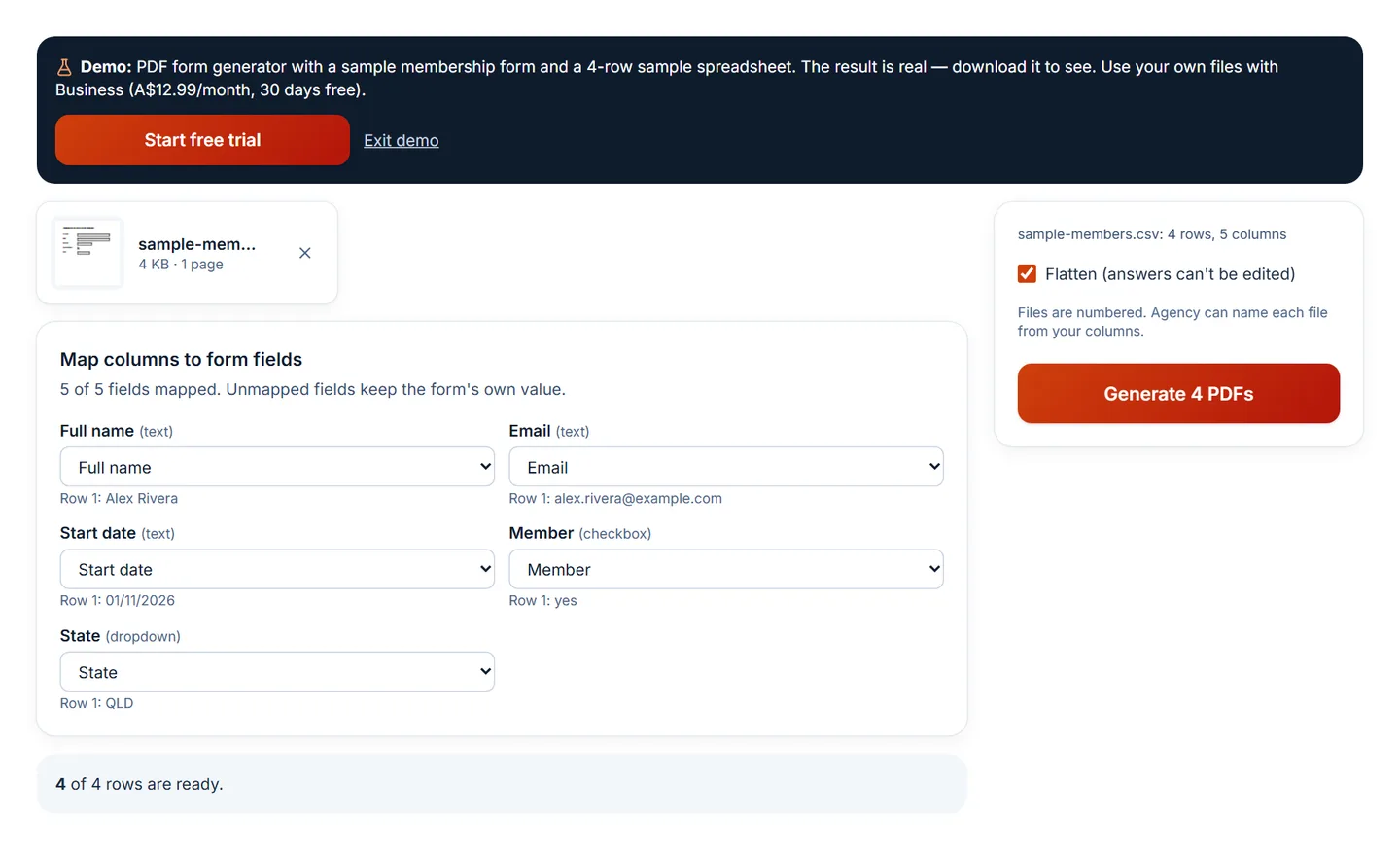
- Check the mapping: each field shows the column it'll be filled from and the value from row 1.
- Read the row check. Rows with values that are too long or aren't one of a drop-down's options are listed and skipped — download the error report to fix them.
- Choose whether to flatten (answers can't be edited), then select Generate PDFs and download the ZIP.
Details that save time
- Checkboxes accept yes / no, true / false, 1 / 0, x or ✓.
- File names: Business numbers the files; Agency can build names from your columns, such as {Full name}-certificate, and adds a number when two names would clash.
- Saved mappings: save a mapping and reuse it next time you use the same form.
- The error report opens safely in Excel — values that could run as formulas are neutralised.
Values are written with a standard PDF font, so characters outside Western European languages (for example Chinese or Arabic names) are flagged as errors rather than printed as boxes.
Questions
Can I use an Excel file directly?
Save it as CSV first — it takes a few seconds and avoids formatting surprises.
Which plan includes the form generator?
Business and Agency. Filling a single form by hand is in Fill PDF forms (Starter).