
How to Automate Repetitive PDF Work with Reusable Workflows
By the PDFPUMA team · Published · 1 min read
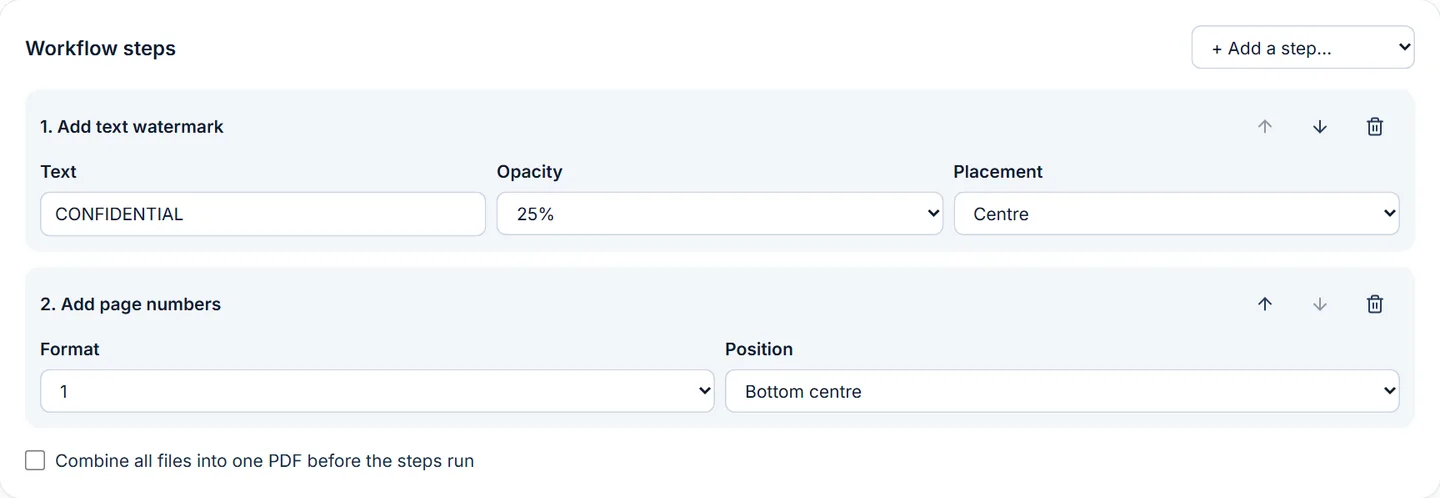
Build the steps once in PDF workflows — for example stamp CONFIDENTIAL, add Page X of Y, then compress — save the workflow, and run it on as many files as you like. Each file goes through every step in order, in your browser, and you download the results as a ZIP.
When a workflow saves time
If you open the same three tools every week and choose the same settings each time, that's a workflow. Typical examples: board papers that need a draft watermark and page numbers; client reports that are merged, numbered and compressed for email; scanned forms that need rotating and compressing.
Build and run a workflow
- Open PDF workflows.
- Add steps: Rotate pages, Add text watermark, Add page numbers and Compress (lossless). Set each step's options and put them in order.
- Tick Combine all files into one PDF if you want them merged before the steps run.
- Name the workflow and Save it to your account.
- Add your PDFs and select Run workflow, then download the ZIP.
Workflows across many clients
Business saves up to 10 workflows. Agency saves up to 50, sorted into client folders, and can name the output files with a pattern — {client}-{name}-{date} produces names like "Acme-board-papers-2026-10-25.pdf".
Workflows store only the steps and settings — never your files. They run in your browser one file at a time, so even large batches stay private.
Questions
Which plan includes workflows?
Business (A$12.99/month, 30-day free trial for new subscribers) and Agency.
Can a workflow include OCR or redaction?
Not yet. Workflow steps are rotate, text watermark, page numbers, lossless compression and merge-first. OCR and redaction are separate tools because they need you to review the result.