
How to Compress a PDF Without Ruining Its Quality
By the PDFPUMA team · Published · 1 min read
Start with lossless compression in Compress PDF: it removes waste without touching quality and shows the real before-and-after size. If the file is mostly scans or photos and still too big, use strong compression, which turns pages into compressed images — much smaller, but the text can no longer be selected or searched.
Two kinds of compression
| Lossless optimisation | Strong (image) compression | |
|---|---|---|
| What it does | Removes leftover data, compresses uncompressed content, repacks the file | Re-draws every page as a compressed image |
| Quality | Unchanged | Lower; good for scans and photos |
| Text | Stays selectable and searchable | Becomes part of the image |
| Links and form fields | Kept | Removed |
| Typical saving | Small to moderate | Large for scans |
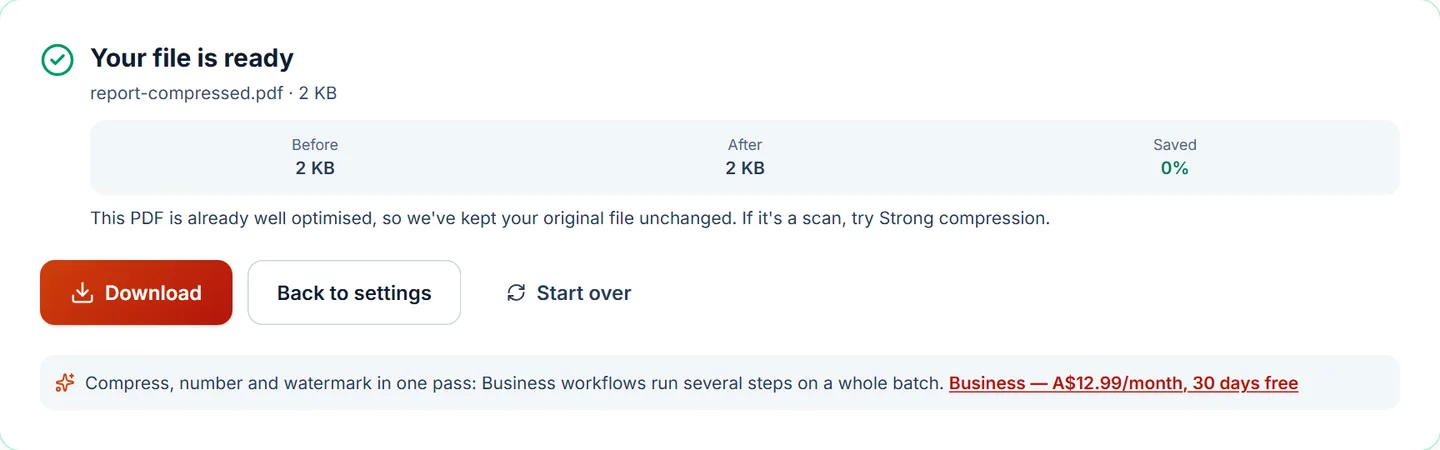
If lossless optimisation can't make a file smaller — common with PDFs that were already exported efficiently — PDFPUMA keeps your original rather than giving you a bigger file.
Step by step
- Open Compress PDF and add the file.
- Choose Lossless first and select Compress.
- Check the before and after sizes.
- Still too big and it's mostly scans? Go back, choose Strong, pick a level, and compress again.
Why is my PDF so big?
- Scans at high resolution or in colour. A 600 DPI colour scan is enormous; 300 DPI greyscale is usually plenty.
- Embedded photos straight from a phone camera.
- Many fonts embedded in full.
- Repeated edits that leave old data behind — lossless optimisation removes this.
Compressing the same kinds of files every week? Business workflows can compress as one step in a saved recipe and run on a whole batch.