
How to Merge PDF Files for Free Without Uploading Them
By the PDFPUMA team · Published · 2 min read
Open Merge PDF, add your files, put them in order and select Merge. PDFPUMA joins them inside your browser, so the files never leave your device. It's free with no account, for files up to 50 MB each and 20 files per merge.
Why merging without uploading matters
Most online PDF mergers upload your files to their servers, process them there and send the result back. That's fine for a menu, less fine for payslips, contracts, medical letters or tax returns. The files may be stored, logged or processed in another country, and you're relying on the service to delete them.
A browser-based merger works differently: the page loads the PDF software into your browser and does the work on your own computer or phone. Nothing about the document is sent anywhere, and it's usually faster because there's no upload or download wait.
Merge PDFs step by step
- Open Merge PDF.
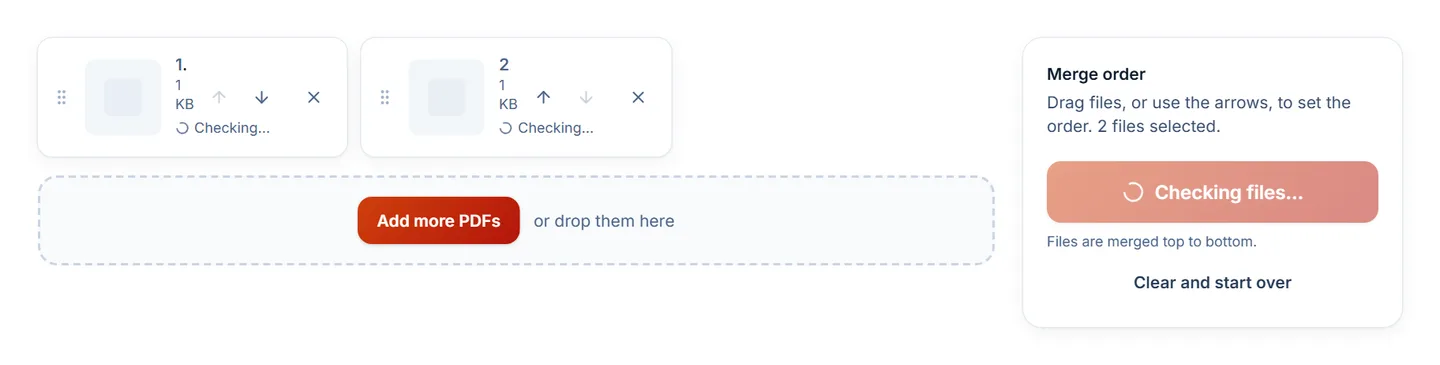
- Choose your PDFs, or drag them onto the page. You can add more at any time.
- Put them in order with the up and down controls (they work with a keyboard too).
- Select Merge PDF and download merged.pdf.
The pages are copied rather than re-rendered, so text stays sharp and selectable and web links on the pages keep working.
How to check a tool really doesn't upload your files
Don't take any website's word for it — check. In Chrome, Edge or Firefox, open the developer tools (F12), go to the Network tab, then run the merge. A browser-local tool shows no request carrying your file; an upload-based one shows a large request (often several megabytes) to its server while it works.
PDFPUMA does send anonymous usage counts — for example "merge completed, 2–5 files" — but never file names, contents or sizes beyond rough buckets. You can switch these off in your account settings, and browsers sending Global Privacy Control or Do Not Track are excluded automatically.
Common problems
- "This PDF is password-protected." Merging needs an unlocked file. If you know the password, remove it with Unlock PDF (Starter) or in the app that protected it.
- A file is skipped as "not a PDF". PDFPUMA checks the file's contents, not its name. Images need converting first with JPG to PDF.
- The result is large. Merging adds file sizes together. Run the result through Compress PDF.
- You need more than 20 files or bigger files. Paid plans raise these limits; Business also merges as the first step of a saved workflow.
Going further: covers, sections and bookmarks
Merging joins whole files. If you want to pick particular pages from each file, add a cover page or section dividers, or create bookmarks for each part, use Document assembly (Starter). For branded packs for clients — logo cover, contents page and footer — see the Client pack builder.
Questions
Is it really free?
Yes. Merge PDF is one of PDFPUMA's 10 free tools, with no account and no watermark added. The free plan handles files up to 50 MB each.
Does it work on a phone?
Yes, in current Chrome and Safari on Android and iPhone. Very large files are faster on a computer with more memory.