
How to Compare Two PDF Documents and Find Changes
By the PDFPUMA team · Published · 1 min read
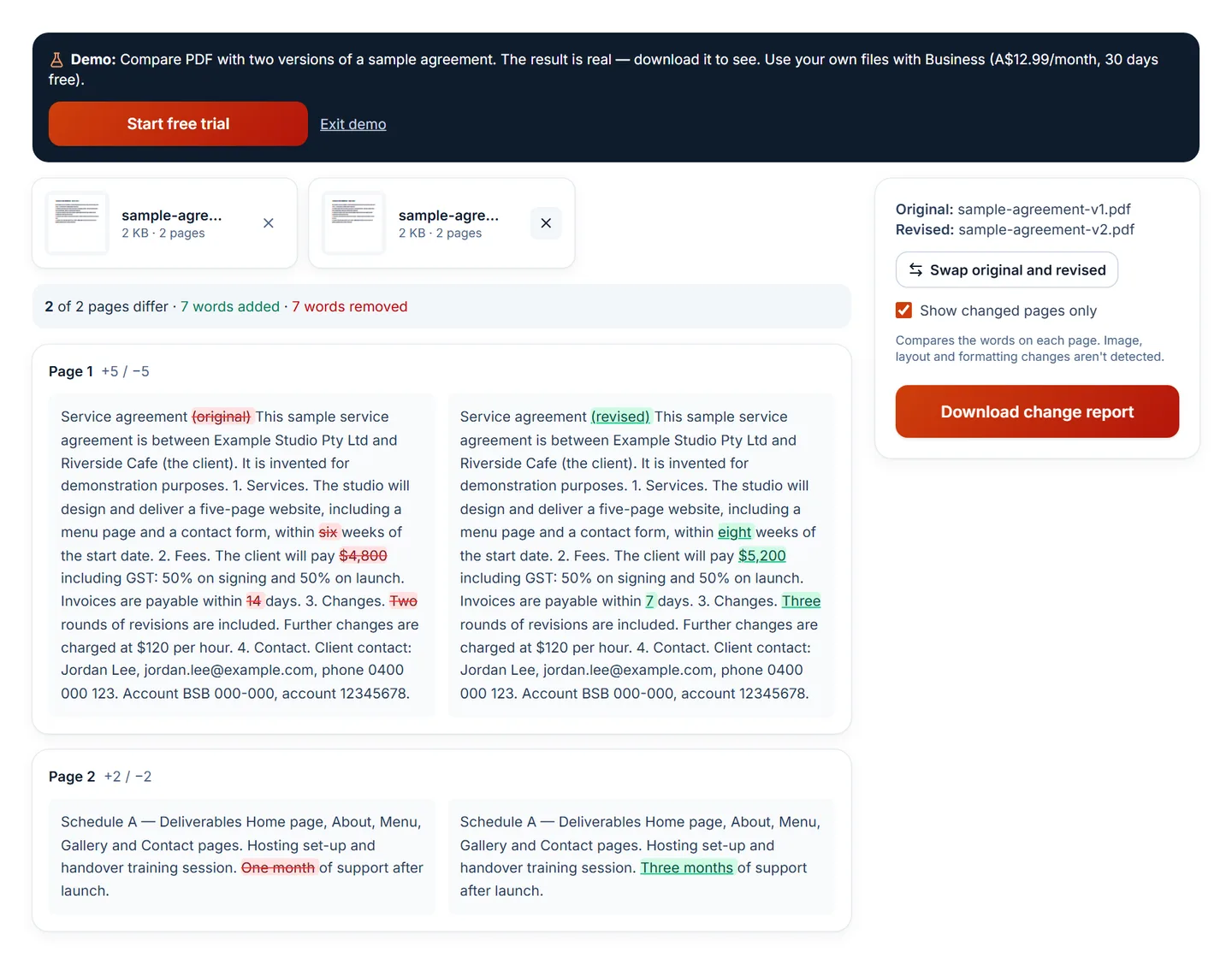
Add the original and revised PDFs to Compare PDF. It shows every word added (green) or removed (red), page by page, side by side, and exports a PDF change report. It compares text — not images, layout or formatting — so scans need OCR first.
Why compare instead of re-reading
A revised contract often comes back with a note saying "minor changes". Re-reading 20 pages to find them is slow and easy to get wrong — a changed number or a removed "not" is exactly the kind of edit people miss. A comparison lists every change so you can review each one.
Step by step
- Open Compare PDF.
- Add the original first, then the revised version (use Swap if you get them the wrong way round).
- Review the summary — pages changed, words added and removed — and each changed page side by side.
- Select Download change report for a PDF listing every change with its context.
What a text comparison does and doesn't catch
| Change | Detected? |
|---|---|
| Words added, removed or replaced | Yes |
| Numbers and dates changed | Yes |
| Whole pages added or removed | Yes — reported as pages only in one version |
| Text moved to a different page | Shown as removed on one page and added on another |
| Images, logos, signatures, colours, fonts, layout | No |
| Scans with no text layer | Not until you run OCR |
Questions
Is this legal advice?
No. PDFPUMA shows what changed in the text; it doesn't interpret it.
Which plan includes Compare PDF?
Business and Agency, with a demo on two sample versions.