
How to Redact Sensitive Information from a PDF Properly
By the PDFPUMA team · Published · 2 min read
Drawing a black box over text doesn't remove it — the words are still in the file and can be copied out. Proper redaction deletes the content. In Redact PDF, every page you redact is rebuilt as an image with the boxes burned in, and the file is re-checked for every phrase you searched for before it's saved.
Why a black box isn't redaction
PDF pages are layers of drawing instructions. A black rectangle added on top is just another instruction — the text underneath is still in the file. Anyone can select it with the cursor, copy it into another document, or extract it with free software. Plenty of court filings and government reports have leaked this way.
Redaction has to remove the content itself, and everything else that might hold a copy of it: the document's title and author, comments, form-field values, bookmarks and attachments.
How PDFPUMA removes the content
- Redacted pages are rebuilt as images with the black boxes already drawn in. There is no text layer left on those pages to recover.
- Pages you don't redact are copied unchanged, keeping their selectable text.
- Document properties (title, author, subject, keywords, XMP metadata), bookmarks, attachments and form fields are not carried over.
- Search covers more than visible text. Searching for a phrase also finds it in comments and form-field values, and finds phrases the PDF has split into pieces.
- The output is checked before it's saved. If any phrase you searched for still appears anywhere — page text, comments, fields, properties, bookmarks or attachment names — PDFPUMA refuses to save and tells you where.
Step by step
- Open Redact PDF and add the PDF.
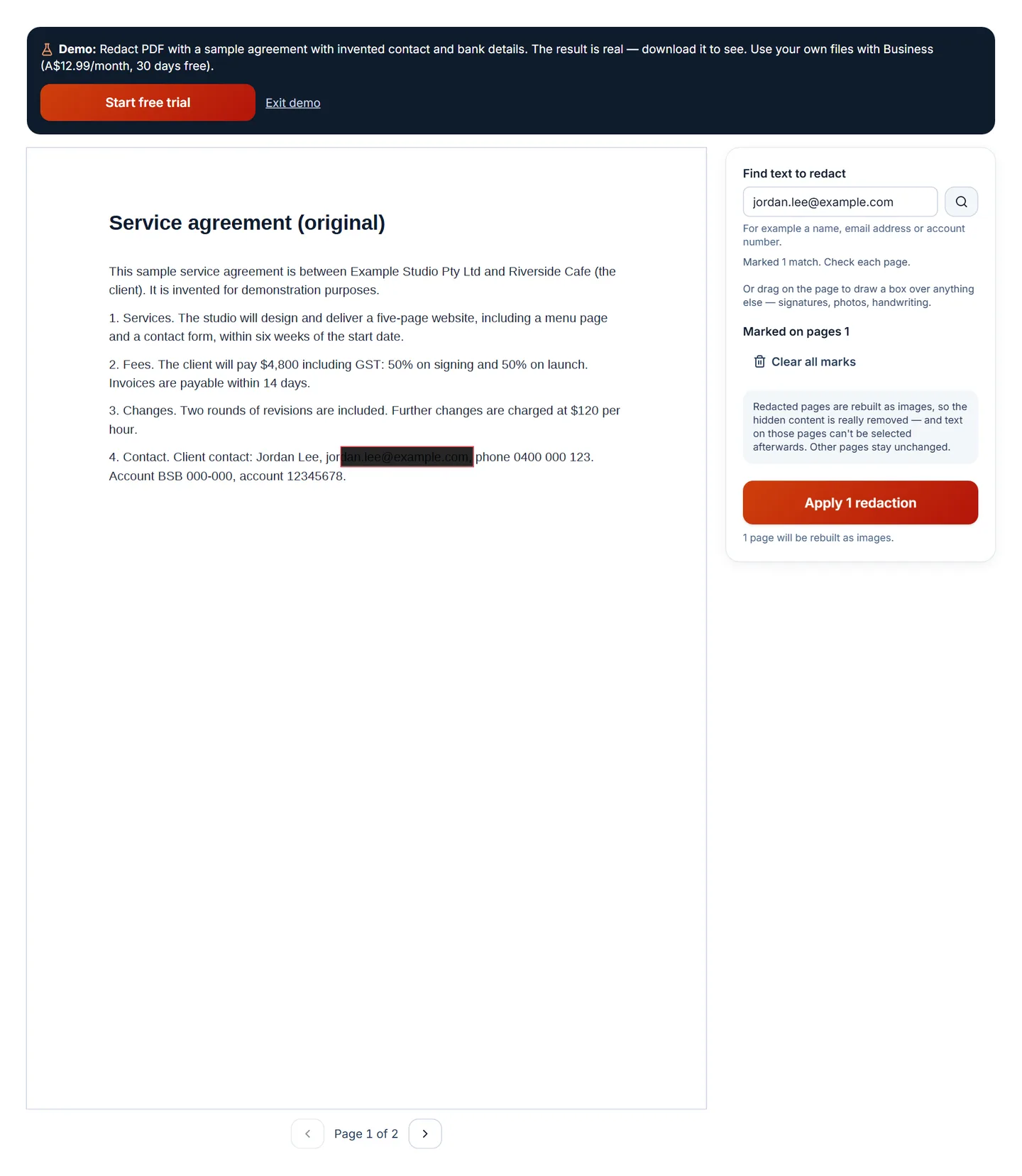
- Search for each name, email address, account number or phrase to remove. Every match is marked.
- Drag on the page to draw boxes over anything else — signatures, photos, handwriting.
- Go through every page. Select a box to remove it if it's wrong.
- Select Apply redactions and download.
Check the result before you send it
- Open the redacted PDF and use Find (Ctrl/Cmd+F) for each redacted term.
- Try selecting text on redacted pages — there should be none.
- Look at File → Properties for the title and author.
- Check the comments and attachments panels.
Trade-offs: text on redacted pages can't be selected or searched afterwards, and those pages may make the file larger. Search only finds text that exists — for scans, draw boxes or run OCR first.
Questions
Is the redacted text really gone?
Yes, from the pages you redact. Those pages are replaced by images of the page with the boxes drawn in, so the original text and graphics aren't in the file. PDFPUMA's tests extract every object in the output to confirm this.
Which plan includes Redact PDF?
Business and Agency. The demo works on a sample document so you can inspect the output before subscribing.